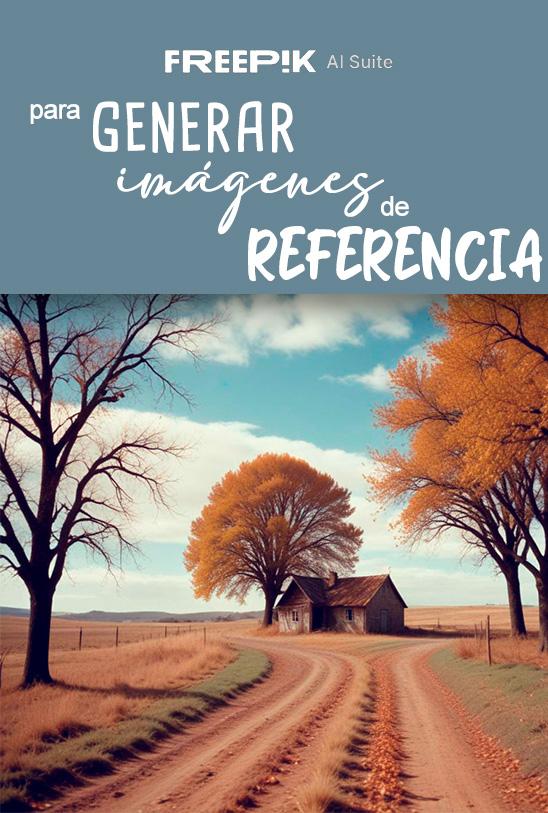
How to create a color palette with Illustrator from a photograph
Happy Friday dear readers!
Today is the first post in the series of four that I created to show you what my creative process is like.
In the video that you will find below I talk to you about how I create personalized and unique color palettes from photographs taken mainly by me.

Below is a summary of the commands I use throughout the entire process:
COMMAND SUMMARY:
- v – select the black arrow
- With a selected element, if we press the alt key, the double arrow appears. By clicking on the element and dragging, we duplicate said element.
- k – to select the paint can.
- With the paint can selected, if we press the alt key, we change from the paint can to the dropper.
- Creación de degradados con pasos específicos:
- Creamos dos rectángulos y los coloreamos de los colores inicial y final del degradado.
- Separamos los rectángulos tantos espacios como pasos queramos que tenga nuestro degradado.
- Seleccionamos nuestros dos rectángulos y
- OBJETO – FUSIÓN – OPCIONES DE FUSIÓN
- En la ventana que nos aparece seleccionamos:
- Espaciado: PASOS ESPECIFICOS
- Escribimos la cantidad de colores intermedios que queremos que tenga nuestro degradado.
- Pulsamos OK.
- Ahora OBJETO – FUSIÓN – CREAR
- ¡Ya tenemos nuestro degradado!, ahora solo queda convertir el degradado en rectángulos independientes para poder utilizarlos a nuestro gusto. Para ello, con todo el grupo de rectángulos seleccionado:
- OBJETO – EXPANDIR
- OBJETO – DESAGRUPAR (puede que tengas que repetir el proceso dos veces)
- ¡Listo! ya has creado un degradado.
If you have any questions, you can leave them in the comments and I will be happy to try to resolve them.
I hope it been usefull,
Until next week!